Do More
Below Menu
 

featured extension:

SiteAssist
Expertly designed, Web standards compatible sites at your fingertips
$199.99
learn more >

featured book:

for sales questions:

Email sales@webassist.com

U.S.
Monday - Friday, 9AM - 5PM PST
800.886.0130 Option 2

Europe
Monday - Friday, 9AM - 5PM GMT
+44 (0) 170.453.3838

Outside U.S. and Europe
Monday - Friday, 9AM - 5PM PST
+1.760.633.4013 Option 2

To many Web developers, creating their first online store is like climbing Mount Everest. The task is daunting in conception and looms even larger the more you approach it. Fear not! This article will give you a solid foundation – a base camp, if you will – in all the fundamentals you'll need to build an eCommerce site. You'll also be introduced to an easy and free tool which can guide you as you trek to the lucrative summit of developing online stores.

Before we begin, let's define a basic term: eCommerce. In this article, eCommerce means transacting real-time credit card payments online. While it's entirely possible to sell goods through the Web by processing payments offline, that's not the challenge discussed here.

Laying the merchant bank foundation
Every store – whether online or off – needs to establish a banking relationship, especially if the business wants to accept credit card charges. Such a relationship is called a merchant account. Merchant accounts are established by the business that owns the online store; the Web developer creating the site may facilitate the creation of the merchant account by gathering information from the client, but ultimately it is the store-owning client who must furnish the details and sign the paperwork. Because of banking regulations, merchant accounts are typically restricted to working with businesses in the same country.

Opening the gateway
The bank, through the merchant account, communicates with the credit card company to authorize orders. However, the online storefront does not deal directly with the merchant account. Instead the credit card details are communicated to what is known as a payment gateway, which in turn passes the information to the merchant account and returns the merchant account's response to the Web site. There are many, many payment gateways available on the Web including those from Authorize.Net, PayFlow (initially owned by Verisign, recently acquired by PayPal), and LinkPoint.

Payment gateways vary greatly in the services they offer and the prices they charge. Even the types of charges vary widely across the industry. Here are the most common charges you can expect:

  • Set-up – These initial, non-refundable fees are charged once; many companies specifically do not charge a set-up fee to attract more customers.
  • Monthly – Monthly charges are typically a fixed cost and can vary widely in amount.
  • Discount Rate – A percentage of every order; the amount of the discount rate may be different depending on the volume of transactions – the more transactions, the lower the rate.
  • Transaction – This charge is a small, flat fee for every transaction processed.
You'll need to shop around a bit to find the payment gateway that best fits your client. One technique is to create a spread sheet that compares the various payment gateway charges with a range of transactions totals for the month. It's worth noting that there are a number of services – such as PayPal and WorldPay -- that combine both the merchant account and payment gateway. If the store owner does not already have a merchant account, it's certainly worth investigating these types of services from an ease-of-use perspective.
Which gateway type will you choose?
There are two basic types of payment gateways. The first type of gateway allows customers to enter their credit card information and other sensitive details on the gateway's own secure pages. Typically, these gateways – which use remote checkout, so-called because the shopper temporarily leaves the online store site – rely on gathering form values and are somewhat easier to implement, particularly from a hand-coding perspective. Although these gateways often permit the store site to include a company name or logo on the checkout page, it's obviously contained in a separate site. The standard PayPal checkout is an example of the remote checkout gateway, as shown in Figure 1.


The other type of gateway, referred to as local checkout, is more difficult to integrate within a site because all communication is handled on the server-side securely behind the scenes. However, from the user perspective, the experience is seamless. On one page the customer enter his or her payment details and on the next the payment is being processed – with both pages within the current site.

The majority of payment gateway companies offer both types of services under different names. For example, Payflow Link provides remote checkout while Payflow Pro offers local checkout. You'll need to decide which type of payment gateway you want to work with – and the type of experience you want your users to have -- before you choose your payment gateway.

Security comes first
Security is an essential element of any online store. A growing number of Web consumers know to look for the locked padlock symbol which indicates a secure transaction. Remote checkout payment gateways provide secure transactions without additional cost or effort – it's one of the main benefits for choosing remote checkout.

If you opt for a local checkout payment gateway, you'll need to purchase and install an SSL certificate. The Web server administrator must install the certificate on the Web server and create a directory on the server for storing pages that will receive encrypted data. References to pages within the secure directory use a HTTPS rather than a HTTP protocol. For example, the home page of your online store might use a URL like http://www.mystore.com/index.php but the checkout page's URL would look like https://mystore.com/checkout.php - and the locked padlock symbol would appear when the browser displays the latter page, but not the former.

Setting up your database
Although it's not required for an eCommerce site to store information in a database, it's highly recommended. Even if your store only sells a handful of products, keeping track of your orders and your customers is infinitely easier with a database. Since your customers must enter their information and place their orders electronically through the Web, it's only natural and more efficient to save those details the same way – in a database.

As with most endeavors, a little planning and effort when establishing your database goes a long way toward smoothing the road to successful and growing online businesses. The best practice is to work with a relational database such as MySQL 5.0. Set up your most commonly used tables first: products, customers, orders and order details. It's important to think of the last two as both essential, connected halves needed to track the goods your store sells. All tables will include a key field, a unique number that identifies each entry, often named something like table_nameID; for example productID or orderID. The order and order details table are joined by a field in the order details table that holds the order table key field value. You'll find an abbreviated list of typical fields for the orders and order details database tables, their format and example values in Tables 1 and 2.

Table 1. Typical schema for orders database table


Column

Type

Description

OrderID

Integer

Key field

OrderUserID

Integer

Related customer ID

OrderShipping

Double Integer

Shipping amount

OrderTax

Double Integer

Tax amount

OrderTotal

Double Integer

Total order cost

OrderDate

DateTime

Date and time order placed


Table 2. Typical schema for order details database table


Column

Type

Description

DetailID

Integer

Key field

DetailOrderID

Integer

Related order ID (OrderID)

DetailProductID

Integer

Related product ID

DetailProductName

Characters (50 length)

Related product name

DetailProductDesc

Characters (255 length)

Related product description

DetailQuantity

Integer

Number of items ordered

DetailPrice

Double Integer

Price of item ordered


By setting up your tables to be interconnected in this way, you allow for one order to contain many separate items with each item a separate record in the order details table. As you can see in Table 2, the same basic technique is applied to connect the order details table to the products table.

Online store Web pages
Now that the foundation for your online store has been laid with the establishment of a merchant account, payment gateway and database, you're ready to begin creating the Web pages for your eCommerce site. Aside from the standard pages found in any site, like the home page, there are a variety of pages you'll need for the standard online storefront. Let's take a look at each of them in depth.
Catalog page
The catalog page gives the shopper an overview of a number of related items at a glance. Shoppers may reach the catalog page by navigating to a specific category of items or by submitting criteria on a search form. Catalog pages are dynamically populated with details from the connected database.

Each item typically includes a thumbnail image of the product, a brief description, a price, a link to the product's detail page and an Add to Cart button, as shown in Figure 2.


The Add to Cart button is a common feature of any online store. When the user clicks the Add to Cart button next to any item, the item's ID is transferred to a session variable, which is later read by the shopping cart function.

Detail page
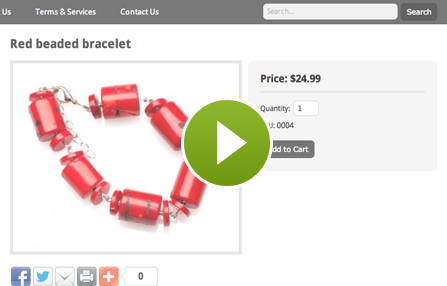
As you might expect, the detail page shows a single item in more depth, with a longer description and larger image (Figure 3). Again, the item includes an Add to Cart button; it's a good idea to also include a form field – either a text field or select list – to allow the user to choose a quantity. In more cases, this form field defaults to 1.


Shopping cart
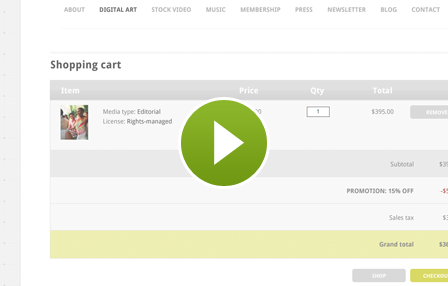
The shopping cart page displays all the items currently in the customer's cart and allows for easy modification of the order. Typically, the shopping cart display includes form buttons that fire commands to delete individual items, update the cart (if quantities are changed), clear the cart entirely, continue shopping or begin the checkout process. A subtotal of all the ordered items is also displayed, as shown in Figure 4. This page can be shown after an item is added to the cart or by clicking on the View Cart button found on other pages in the site.


Many online stores also feature an abbreviated version of the shopping cart on individual catalog and detail pages that keep the customer up-to-date on the number of items in the cart and the current total. Keeping your shoppers informed makes them more comfortable with the entire shopping experience.

Information page
You'll need a place for shoppers to input their details regardless if you're using a remote or local checkout. However, the depth of the information gathered varies significantly between the two options. For remote checkout, you'll need to gather the customer's name, email address, billing address and, if physical goods are being sold, shipping address as well. The billing address is required to properly assess any taxes. The other payment details, like credit card number and expiration date, are gathered on the secure pages of the remote payment gateway.

In addition to the details collected with a remote checkout, sites using local checkout will also need to gather the credit cart information. In this situation, this page must be secure and protected with the SSL certificate previously discussed.

Regardless of the type of checkout, the details gathered from the customer should be stored in your database when the Submit button is clicked. Many online stores allow past customers to log-in and retrieve all of their details automatically. This makes the shopping experience much smoother for the customer and merchant alike.

Checkout confirmation
After the customer details have been entered, you'll want to display the complete order with all charges before attempting to authorize the purchase. After you've gathered the billing and shipping addresses, you can properly calculate any tax or shipping charges. These should be added to the cart's subtotal and a grand total presented. A prominent button gives the shopper an opportunity to submit the order.

Although it's a bit of a judgment call, at this stage it is recommended that the shopping cart display be read-only to encourage the customer to complete the transaction. No other button options – like Clear Cart or Continue Shopping – should be present.

Order confirmation
After the order has been authorized (or rejected), you'll need to display the results and next steps to the shopper. If the payment has been rejected, a simple text message will suffice with a link to the information page to allow the customer to try another credit card. If the payment has been accepted, an "order confirmed" message along with a repeated display of the final shopping cart with all charges is best. This makes it possible for the customer to print out the page as a receipt. Many eCommerce developers also send a similar page to the customer via email.

Behind the scenes, the order confirmation page is the perfect spot to store all the order details to your database. Since you know that the order is successful if this page is requested, you can trigger the inserting of the database record when the page is loaded.

The fastest way to the top
Now that you've got a better sense of all that it takes to build a successful eCommerce site, how would you like a shortcut? As noted earlier, PayPal offers both a payment gateway and merchant account in one system; you can also find code on their site for implementing Add to Cart buttons and much more. If you're working with Dreamweaver, eCart makes this even simpler with a series of easy to use wizards for a completely code-free setup. Learn more about eCart here: http://www.webassist.com/professional/products/productdetails.asp?PID=123.

I hope you've enjoyed your tour of eCommerce and are ready to begin your journey. The rewards for creating online stores are substantial, both from a monetary and accomplishment perspective.

About the author:
Joseph Lowery is a world-renown Dreamweaver expert and author of the best-selling Dreamweaver Bible series from Wiley Publishing; his Dreamweaver CS3 Bible is now available. Joe is also Vice-President of Marketing for WebAssist; contact him at jlowery@webassist.com.

Spacer
Spacer
- CSS Menu Writer - 
 Totally customized Web Standards based menu creator
 Save $25 for a limited time
 Expires Tuesday, May 27th, 2008
Spacer